

Built-in roles
Every tenant starts with six roles, each inheriting everything the role below it can do:public, viewer, analyst, data_engineer, data_admin, account_admin. A platform_admin
flag sits outside this ladder entirely. It’s granted to a small number of people who support the
whole platform, not a role your tenant assigns. Full detail, including which role can create,
update, delete or certify each kind of thing, is in the roles matrix.
Preview own apps lets a member run their own app locally using their existing data permissions.
It is included in viewer; admins can allow or deny it for a custom role in
Settings → Roles & permissions, on the Data apps row.
Publish own apps and Manage own apps are also included in viewer and inherited by analyst.
You can publish and install your own static app by default, then share its URL with other tenant
members. Each query uses the current viewer’s grants intersected with the installed ceiling.
App code is trusted, like spreadsheet macros; its server may retain or redistribute data it has received.
Administrators can turn either setting off per role in Settings → Roles & permissions. Inherited
denies win over narrow allows, and off also prevents narrow delete, park or uninstall actions.
Broad app administration stays available. See Own-app role settings.
Personas
Your default console persona follows your access. If you can only read apps, you start in Live Apps with Overview, Live Apps and Settings in the sidebar. A saved persona choice takes precedence. The sidebar hides surfaces you cannot read. Settings remains available for your profile and plan. Explore appears with Catalogs → Read or Query engines → Read. Catalog browsing and search require Catalogs → Read, and the SQL editor needs Query engines → Read; table grants still limit which objects you can see. These aren’t console settings, they’re the people who actually use Dippr, and what each one needs day to day.
An agent author is not a role of its own: whatever an agent can do is bounded by the role of
whoever connected it, human or service user, and further narrowed by the scopes that connection
consented to. The same is true of a service user generally: its API key’s access is the
intersection of its scope and its assigned role, never either one alone.
The console’s persona preset
Separately from governance roles, the console keeps a display preset, Data engineer by default, that sets your default landing page, which sections appear in your sidebar, and which Overview widgets you see. The preset only changes what you’re shown; it never changes what you’re allowed to do, which is governed entirely by your assigned roles. To open a different workspace, use the workspace switcher at the bottom of the sidebar. It lists your workspaces by name and address and includes Create workspace. Your roles in the workspace you open determine your access there.What each role sees on shared pages
Overview and Settings → Plan adapt to what your roles allow, so you are not offered actions you cannot take:- The Get started card on Overview leads with one prompt for your coding agent, which needs
no grant: every member gets it, because connecting an AI tool is their own machine’s business. The
card’s data line adapts: a member who cannot connect a source is told their admin hasn’t connected
one yet instead of being offered Use sample data. Behind Set up by hand instead, the
step-by-step checklist lists only the steps you can act on. Connecting a data source and publishing
an app need the create grants a data engineer or data admin holds, so an analyst or viewer without
those grants sees the terminal step on its own: install
dip, sign in, and connect your AI tool. - The Members widget on Overview lists the tenant’s members only for a role that can read the
member directory:
viewerand every built-in role above it, or a role with Members → Read. A custom role built withoutviewer, such as one that opens a single app for an outside guest, does not see the widget and cannot list who else is in the tenant. - On Settings → Plan every member can read the plans, but the button to request a plan change is shown only to a member who can administer the account (by default, an account admin). Other members see the prices and a note saying who can change the plan.
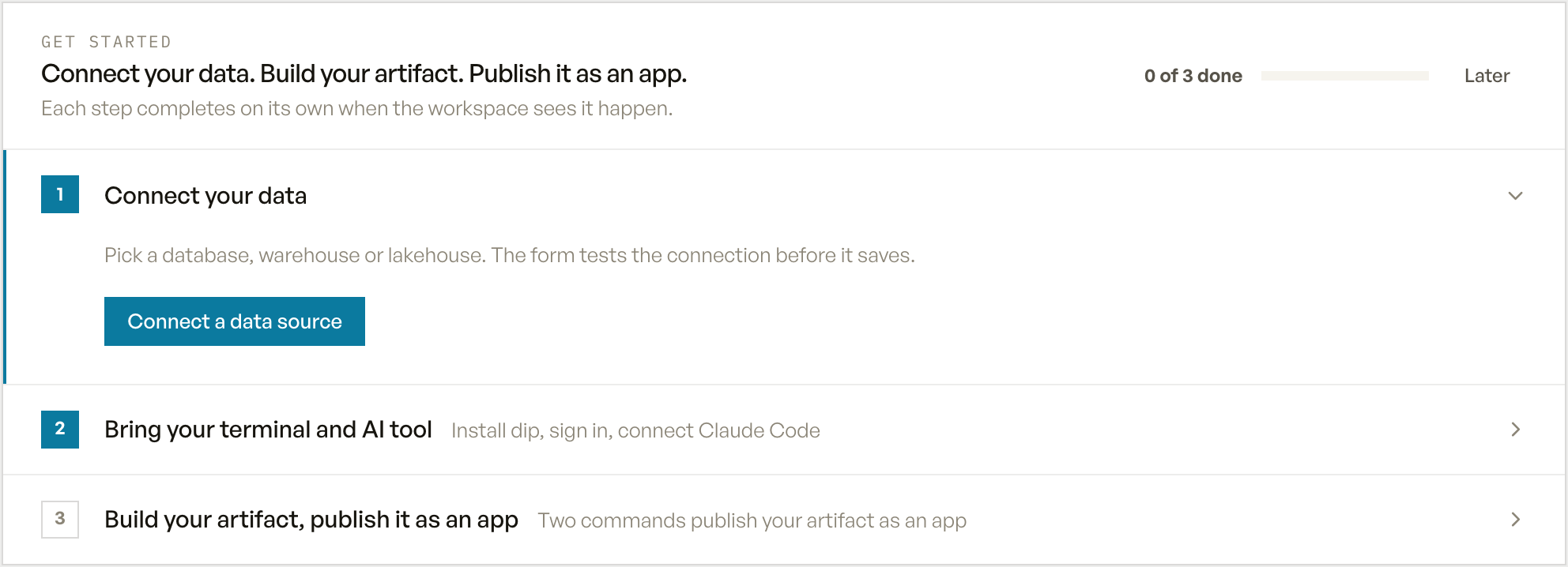
Overview Get started card for a data engineer or admin: all three setup steps.
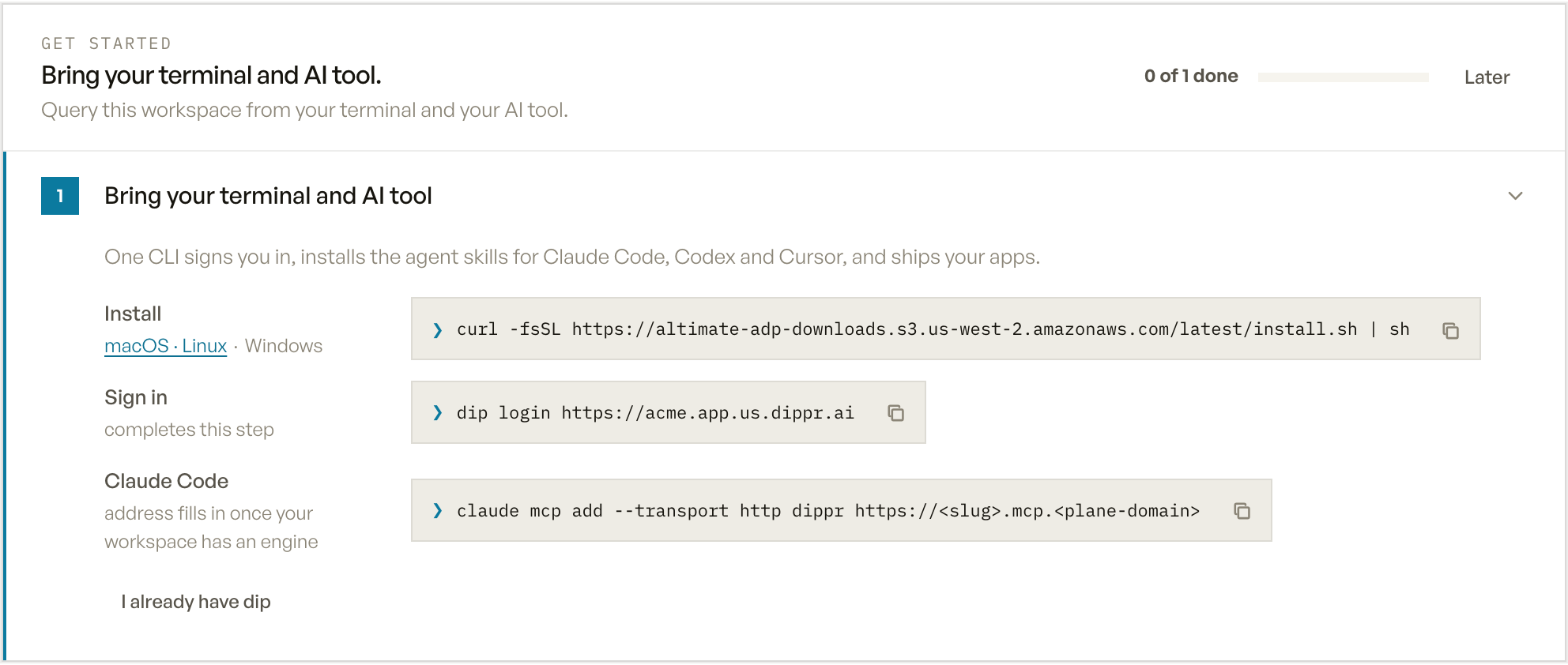
Overview Get started card for an analyst or viewer: the terminal and AI tool step alone.
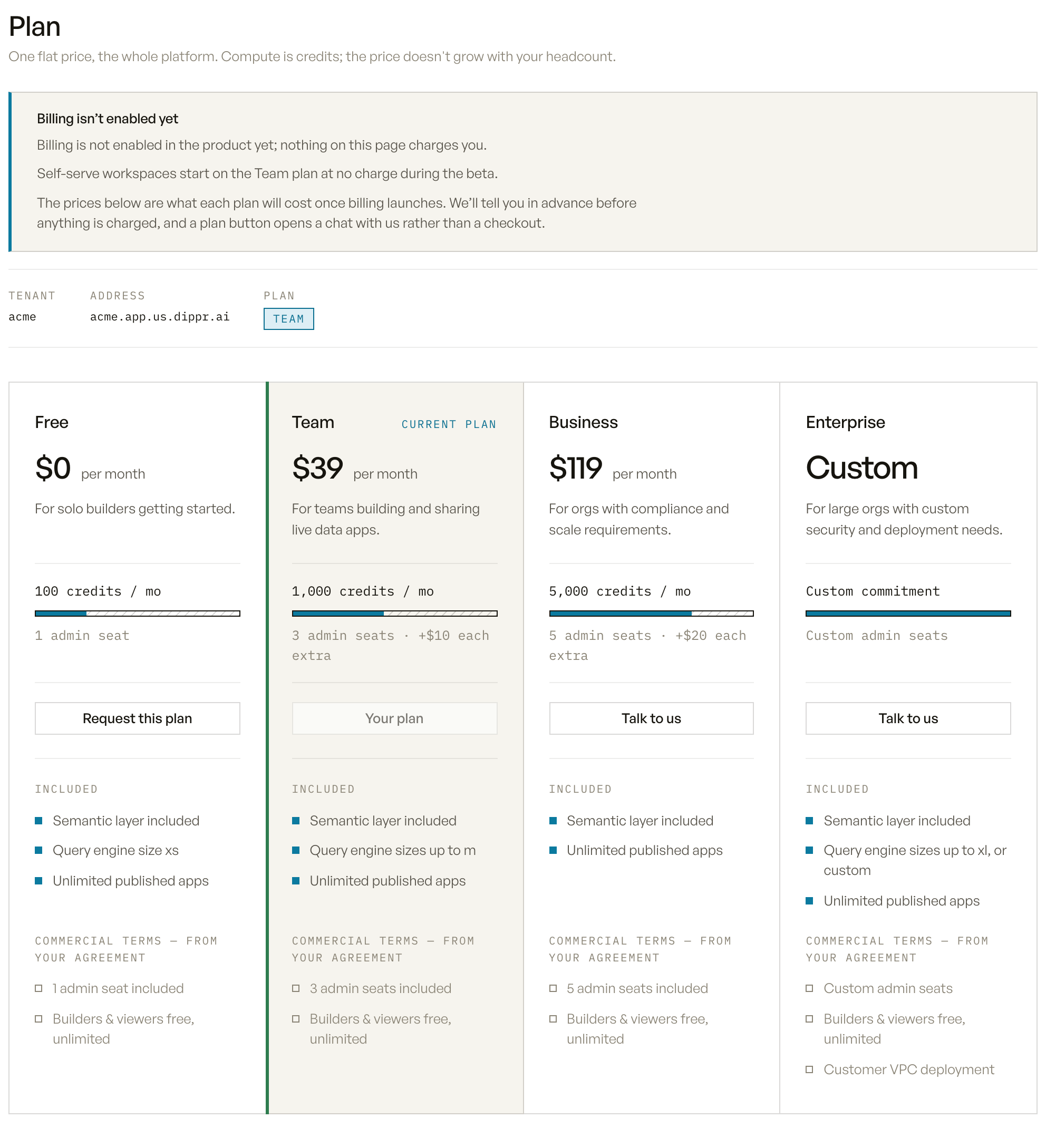
Settings, Plan for an account admin: the request-a-plan buttons are shown.
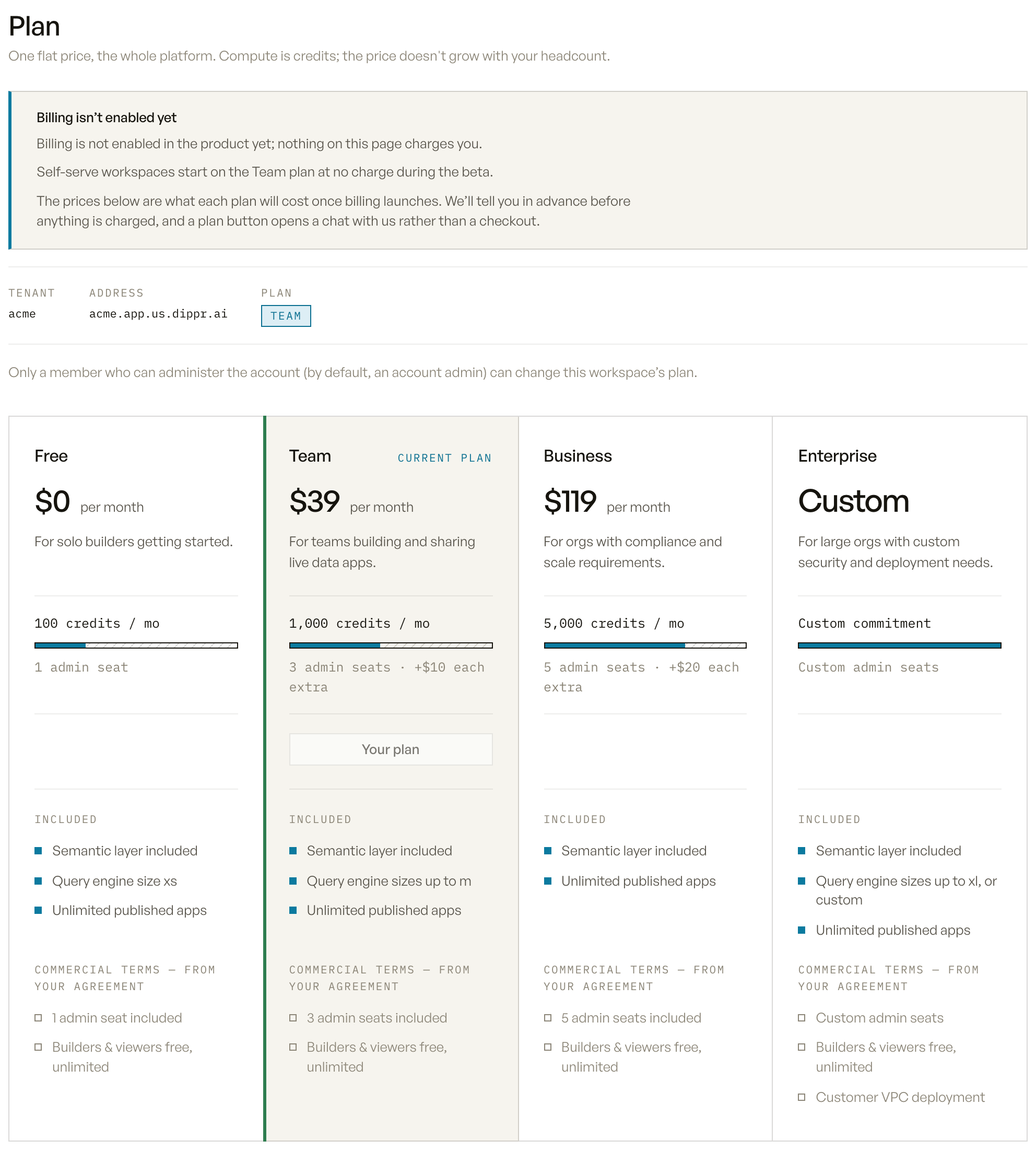
Settings, Plan for an analyst or viewer: the prices are shown with a note saying who can change the plan.