

The members list
Settings → Users lists everyone in your tenant: their email, the roles they hold, who invited them, and when they joined. You need the Members · read privilege to see this page (see Roles and permissions matrix). The first administrator is marked Root and can’t be removed or demoted. Every tenant keeps at least one account holdingaccount_admin so it can never lock itself out.
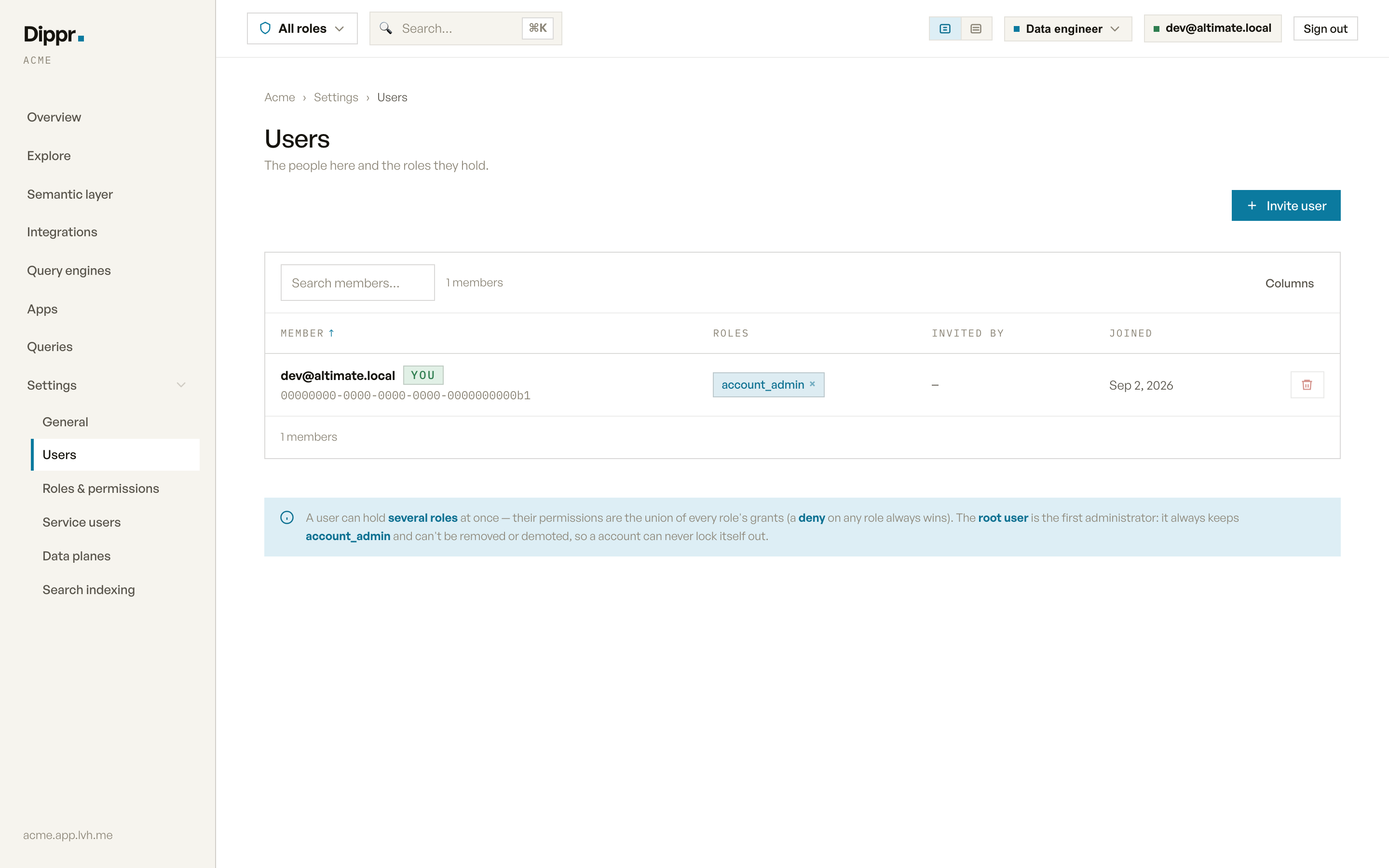
Settings › Users: the members table with role chips and the Invite user button.
Waiting for acceptance
When you invite an email that already has a Dippr account, that person does not join until they sign in and accept. Once the invite link has been opened, they appear in a separate Waiting for acceptance list under the members table, not in the members list. An invite link that nobody has opened yet is in neither list. If your tenant has the access log, creating the link is recorded there. The list shows each person’s email, the roles you invited them with, who invited them and the date. It reads: “These people already have a Dippr account. They join when they sign in and accept.” Anyone who can see the members list (Members · read) sees Waiting for acceptance. To cancel an invitation, click Cancel invitation on its row. That needs the Members · delete privilege, and without it the button isn’t shown. A cancelled invitation can no longer be accepted. Cancelling works on the invitations in this list only: it does not switch off an invite link that has not been opened yet, which stops working when it expires. If the person doesn’t act, the invitation expires after 30 days. A person who is waiting holds no roles and can’t open your tenant. See Inviting a user.Assigning and removing roles
Click + role on a member’s row to grant them another role, or the × on a role chip to remove one. A member can hold several roles at once. Their permissions are the union of every role’s grants, and a deny on any one of them always wins. Removing a role can give someone more data access, not less. Row filters and column masks belong to the role that sets them, so when the role you remove is the last one filtering or masking a table, and another role they hold (a shared workspace database, for example) can still read it, they now see every row and the real values. Before such a removal, Dippr shows which tables and columns open up and which role set the restriction, and removes the role only when you confirm. A removal that lifts no row filter or column mask happens at once. The same check is on Settings → Service users. It covers row filters and column masks only: removing a role that carries a deny is not flagged, though it can open what the deny closed. Roles granted by creating or sharing a workspace database appear as Owner of sales_db or Shared: sales_db, using the database’s name. They aren’t offered in + role, Invite user, a service user’s roles or a custom role’s inheritance; create or share the database to grant that access. You can remove a Shared: role with ×. An Owner of role has no ×: nothing grants it back, so delete the database to end the owner’s access.You can only grant or remove a role that’s within your own permissions. Trying to hand someone a role
that reaches further than your own is refused with an error naming the role you overreached with,
rather than silently doing something narrower.