

When you need one
By default, Dippr’s data plane reaches a source by dialing its host and port directly. If your database sits in a private subnet behind a bastion host, register an SSH tunnel integration and point your Postgres, Amazon Redshift or ClickHouse integration at it — Dippr dials out to your bastion, so nothing inbound is required on your side and no VPN is involved.Register the tunnel
From Integrations, choose Register integration and select SSH tunnel.
There’s no private key field here at all: Dippr generates an ed25519 key pair the moment you save, keeps the private half sealed to your data plane, and never shows it to anyone — not even you. Only the public half is shown, for you to install.
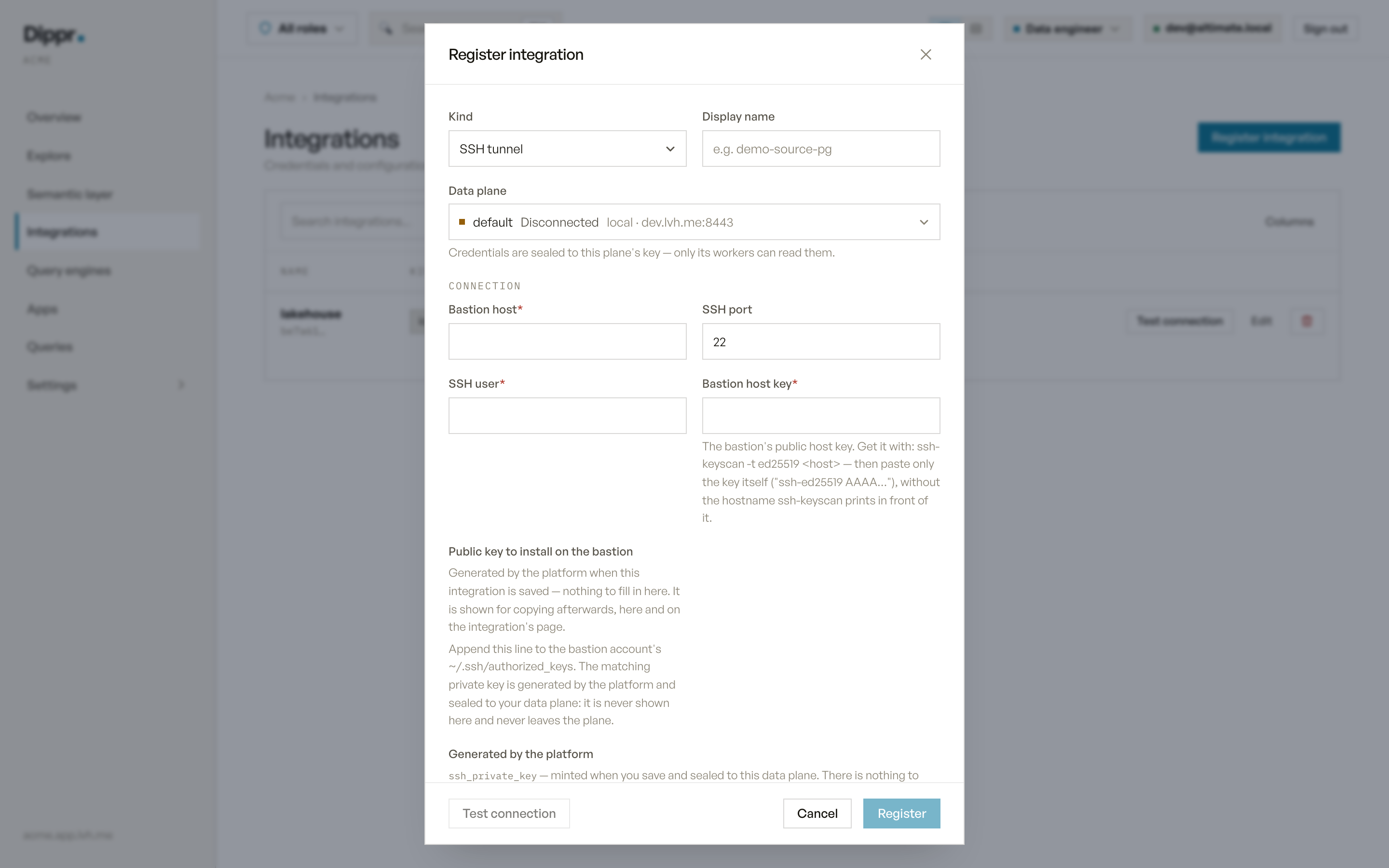
The Register integration dialog with kind SSH tunnel selected.
Finish setup: install the key
After you save, Dippr shows you the generated public key in an Authorize this key panel. Add that line to the bastion account’s~/.ssh/authorized_keys, then run Test connection from the same panel.
If you ever need to replace the key pair, open the integration and choose Rotate key. The tunnel stops working the instant you rotate, and stays down until you install the new public key on the bastion — nothing reconnects on its own.
Attach the tunnel to a source
On a PostgreSQL, Amazon Redshift or ClickHouse integration’s register or edit form, set its SSH tunnel field to the tunnel you registered. Those are the only three kinds that can use one: Snowflake, Google BigQuery, Iceberg REST catalogs, Google Sheets and DuckDB are all reached over the public internet by host name, not a private TCP endpoint a bastion could relay, so none of them offer this field, and attaching one is refused rather than silently ignored.What your bastion needs
- Allowlist your data plane’s outbound (NAT) address. Every tunnel dials out from the same fixed address; check with your platform admin if you don’t already have it.
- Permit TCP forwarding for the tunnel user, and allow the specific destination:
AllowTcpForwarding yesplus aPermitOpencovering your database’s host and port. A bastion that authenticates the key correctly but still refuses to forward reports “administratively prohibited” — that’s this setting, not the key. - No shell is required. The tunnel account only ever opens a forwarding channel, so a login shell of /sbin/nologin works fine — a locked account does not, and fails with a message that looks like a bad key.
There’s no trust-on-first-use here: Dippr checks the bastion’s host key against exactly the value you registered, every time. A mismatch is refused, not logged and allowed through — get the current key with
ssh-keyscan again if the bastion’s key ever legitimately changes, and update the integration.TLS through a tunnel: use require, not verify-full
Encryption survives the tunnel, but certificate identity checking doesn’t carry through it. Your database driver checks the server’s certificate against the host it was told to dial — and through a tunnel, that’s the tunnel’s own internal address, which no real certificate names. Set SSL Mode to require on a tunnelled Postgres source rather than verify-full: you keep encryption end to end, and the tunnel’s own strict host-key verification already answers “which machine am I talking to” in place of the certificate’s name check. A tunnelled verify-full connection fails loudly at connect time rather than silently downgrading, so you’ll see this immediately if you leave it set.
Test connection
Testing a tunnel checks that it’s live and has at least one established connection to your bastion — it doesn’t re-dial your database itself. Test the source integration (Postgres, Redshift or ClickHouse) to prove the whole path end to end.What this guarantees
- Your database is never reachable by anything other than Dippr’s tunnel to that one bastion, on that one host and port — the tunnel reaches nowhere else on your network.
- The private key never leaves Dippr and is never shown to you, your teammates, or support.
- A host-key mismatch, a down bastion, or a tunnel that isn’t ready yet all fail the connection cleanly. Nothing silently falls back to a direct, untunnelled connection.
Equivalent dip command
Register an SSH tunnel
Troubleshooting
Related
PostgreSQL
Connect a Postgres database, optionally through a registered tunnel.
Amazon Redshift
Connect a Redshift cluster, optionally through a registered tunnel.
ClickHouse
Connect a ClickHouse database, optionally through a registered tunnel.